There are a lot of customizations people go through after re-installing / re-formatting Windows. One of those things is making their Desktop appear and behave to their liking. I always add My Computer (or Computer on Vista), relocate the Recycle Bin, and adjust the icons. In Vista, I like smaller icons than the default size. There’s an easy way to do this, and a hard way:
Easy: Change Icon Size On-The-Fly
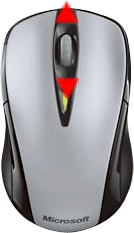
To change your icon size, go to the Desktop, hold down Ctrl and scroll your mouse middle scroller up or down. This will increase and decrease the icon sizes respectively:
Ctrl +
Hard: The Tedious Method in Vista
The other way to change the icon size is a bit harder. In Vista: Right-click the Desktop > Personalize > Windows Color and Appearance > Open classic appearance properties for more color options > Avanced… > under Item choose Icon. Now adjust the size property. Isn’t that tedious?
Definitely does not work with my trackball mouse, darn it!